Cursor, Codex, or Claude Code: Choose by Workflow
A scenario-based guide to choosing Cursor, Codex, or Claude Code for edits, repository tasks, CLI work, prototyping, and review.
In brief
- • Compare tools on a concrete task from your own workflow.
- • Before connecting a repository, check access, isolation, and change review.
- • Choose an environment where you can stop the agent and inspect the result.
ContentsShow sections
Cursor, Codex, and Claude Code help you work on projects with AI, but it is easier to choose by task than by an overall ranking. An editor-based workflow may suit nearby code changes; a delegated task may call for a bounded assignment with reviewable changes; a terminal workflow may call for a CLI with clear permissions. Before choosing, check where the tool runs, which files and commands it can access, and how you will verify the result.
Current as of September 25, 2026. Features and mode names change; the links below point to official product documentation.
Start with the task and workflow
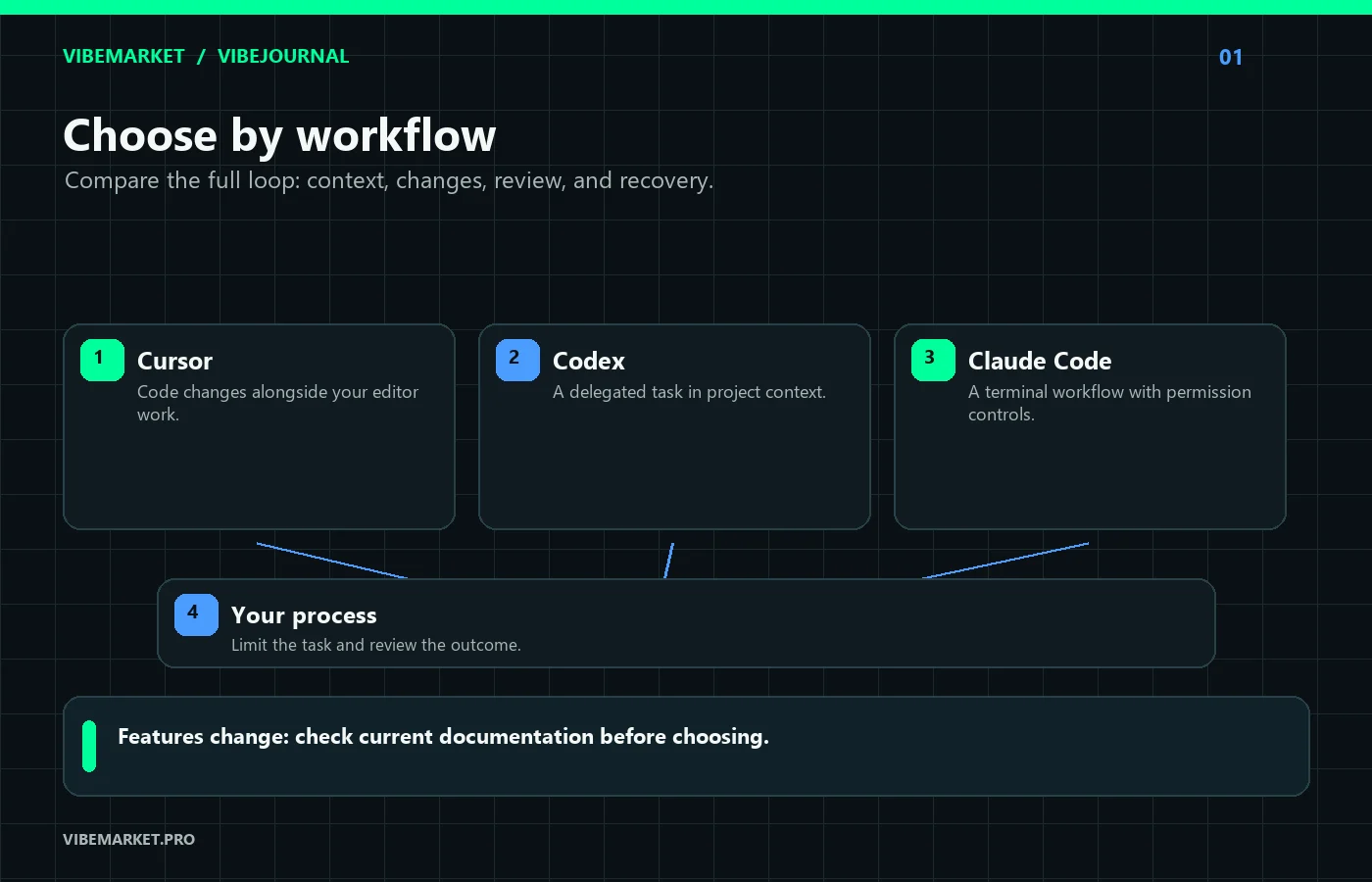
Clarify three things: where the project lives, how independent the task should be, and who will review the result. "Adjust this label and spacing" is different from "inspect the repository, find the cause of a failure, and propose a fix." The first calls for a short iteration in a familiar editor. The second needs project context, limited permissions, and an easy way to inspect changes.
None of these tools removes the need for review. Names and features depend on the current version, plan, and settings. Check the documentation before connecting a real project.
Match the tool to the workflow
| Scenario | What to look for | A sensible first step |
|---|---|---|
| A small change in a familiar project | Can you ask about nearby files and inspect the proposed edits? | Try an editor workflow such as Cursor on one small change |
| Exploring several parts of a repository | Can the tool gather context and show which files changed? | Give it a narrow question or task; request a plan first |
| A multi-step delegated task | Can you limit its scope, follow its progress, and stop an action? | Use a separate branch or environment and review material changes |
| Working from a terminal | Do you understand the commands, and can you limit tool permissions? | Learn the CLI workflow and permissions before connecting work secrets |
| Rapid prototyping | How quickly can you check one user flow? | Use a familiar interface and keep payments and real data out of the first step |
| Reviewing a completed change | Can you read the diff and check it against the task? | Ask for a short explanation, then verify it yourself |
This table is not an accuracy ranking; it helps you select a workflow. Cursor documents Agent workflows for planning and reviewing changes; Codex is available through ChatGPT, editors, and the terminal; Claude Code offers command-line work with configurable permissions. Specific features and access depend on the current version and settings.
What to check before connecting a repository
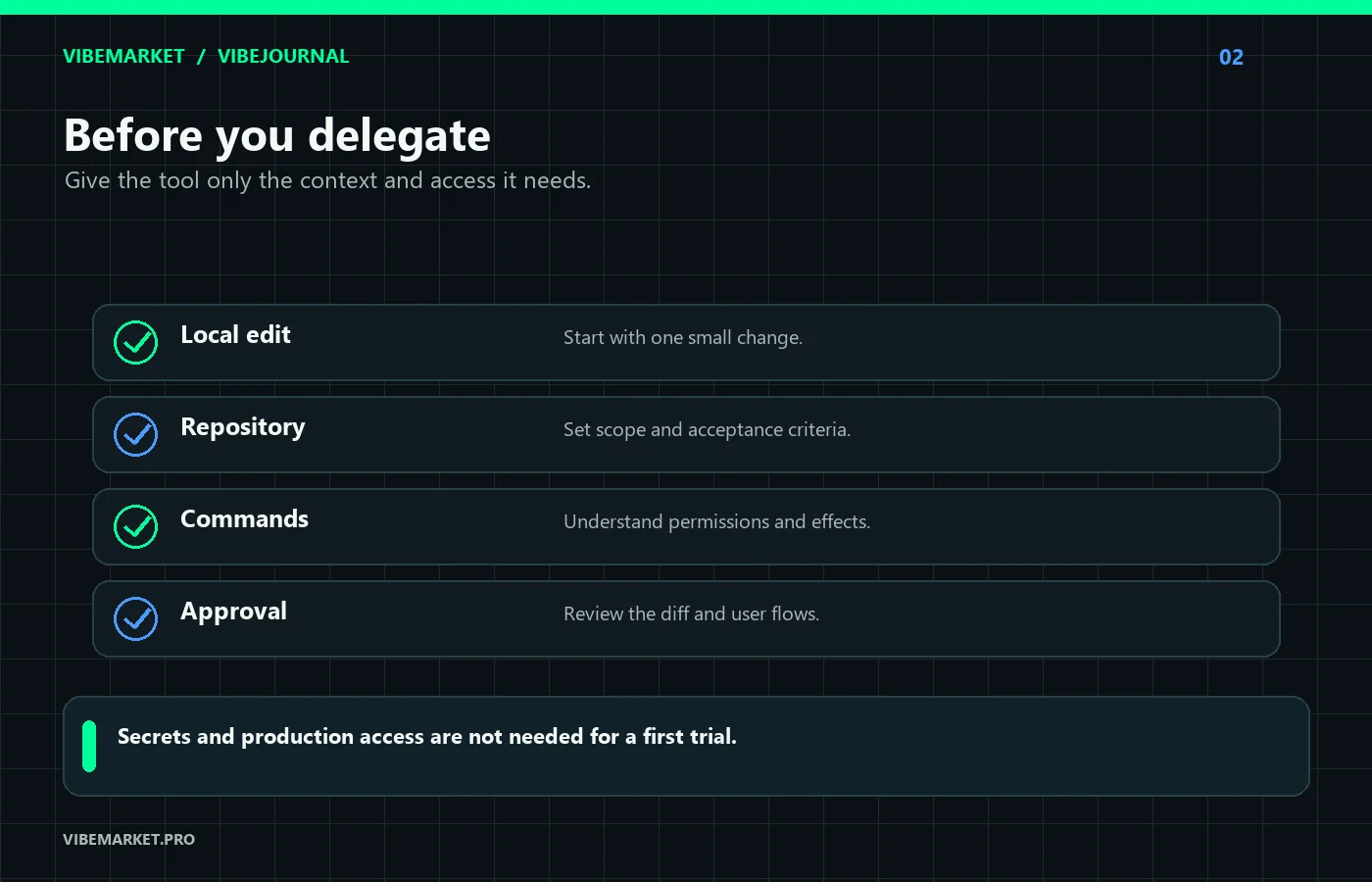
Permissions. Check whether the tool can edit files, run terminal commands, install packages, or access the network. Begin with the least access the task needs.
Context. Do not assume the agent sees everything that matters. Give it a short project description and task criteria, but do not put secrets or private user data in a prompt.
Verification. Decide how you will know the task is complete: a specific screen, a fixed flow, reviewed changes, or a successful manual run in a test environment. "The agent finished" is not a completion criterion.
Recovery. Make sure there is a saved version, branch, or other way to restore a working state. For data changes, define a safe test environment first.
Test a tool on your own work
Pick a small, low-risk task from a real project: add guidance to an empty state, find a repeated component, or fix an obvious typo. First ask which files the tool expects to change. Then limit the change, inspect the outcome, and compare it with the criteria.
Compare the full cycle, not just generation speed: setup, clarifications, reading changes, corrections, and handoff to a teammate. A tool can prepare an answer quickly, but if it is hard to understand or safely accept, review can absorb the saved time.
Use a separate branch or project copy for parallel or autonomous work. For a terminal workflow, learn how the tool controls permissions for commands and actions. Do not start with a project where an error could affect customers or live data.
How to compare tools and choose a workflow
- For edits alongside code, try Cursor.
- For a bounded repository task, explore Codex's current workflow.
- For terminal work and permission controls, look at Claude Code.
These are starting points, not a ranking. Check current documentation and compare the full task cycle on one safe example. For team projects, consider the shared review process.
Compare tools on the same task
Choose a safe task that resembles your regular work and has a clear finish. For example, ask each tool to find where an empty state appears, suggest a small change, and explain how to check it. Keep production access and real data out of the trial. The point is to see how a tool supports the whole workflow, not to run a model race.
For each option, note the setup required, how easily you could provide context and set limits, which files changed, and how quickly you understood the result. Record the clarifications you needed and whether you could safely reject a proposed change. These observations are more useful than one impressive answer.
Do not switch tools after the first rough result. Check whether the problem repeats after you provide a clear task and the relevant file. If the result is confusing, you may need a clearer criterion or more context. If commands run with broad permissions, inspect the settings. If the result is hard to review, find where the tool shows its changes. Different problems call for different fixes.
Match the process to the task
For a copy edit, a small layout fix, or a short interface change, it helps to stay close to the file and see the result. Use short iterations: name the area, review the change, inspect the screen, and adjust the details. Do not give the assistant a backlog of future ideas when your current goal is to check one screen.
Repository exploration needs another sequence. First ask which parts of the project control the behavior in question. Have the tool explain the connections and list unknowns. Then define a narrow change and check the affected areas. This first step helps when you do not yet know where the cause lives.
Split a multi-step assignment into milestones. Ask the tool for a plan and wait for approval before it starts; then let it complete one bounded stage. Review the changes between stages before continuing. Put a clear stop before an irreversible action: deleting data, granting access, starting an external operation, or publishing.
For team work, consider more than individual convenience. Colleagues should know where to find the history, how to approve actions, and how to take over an unfinished task. If everyone uses a different method, handoff can take longer than the code change. Agree on a few shared rules for storing requirements, limiting access, and accepting results.
A selection sheet before rollout
For each candidate, record where it runs, which parts of the project it can see, whether it can edit or run commands, how it requests permission, where it shows changes, and how it keeps history. Features may depend on the plan, version, and configuration, so check the exact setup you intend to use.
Evaluate each task separately. One tool may suit edits, another repository analysis, and a third may fit the team's environment. That does not mean you need to buy or roll out everything at once. Start with the most common workflow and find where the current process loses time.
Before connecting a working project, check how to revoke permission, stop an operation, and restore changes. Find out which data leaves the computer and which settings apply to the team. If the documentation does not answer a security question, do not guess. Keep sensitive areas closed until you can verify the behavior.
If two tools do equally well on the trial, choose by the limits that matter most to your team. Frequent edits may call for a familiar environment and a quick way to inspect changes. Delegated tasks may depend more on scope controls, progress visibility, and a stop mechanism. For handoff, history, a readable diff, and shared project context may matter most.
Agree on the handoff format before a pilot ends. Ask for a list of changed files, checks performed, assumptions made, and any step that still needs a person. If another teammate cannot continue from that summary and the project history, the workflow is not ready for shared use.
Price and availability also affect the choice, but check the current plan and account settings. Before rollout, decide who manages the subscription, permissions, and project data. If only part of the team can access a tool, agree how results will reach colleagues who work another way. Otherwise, a shortcut in one step can add manual handoff and repeat reviews elsewhere.
Do not name a winner from one answer. Keep the trial task and repeat the comparison when the workflow or product limits change. If the team has different needs, document a few allowed workflows and name a review owner for each. One tool for every task is unnecessary if it obscures responsibility.
After a pilot, write one short team guide: which tasks to delegate, which areas to exclude, how to review the diff, and whom to ask when a question comes up. Revisit it when versions or settings change. A small local guide preserves what worked and helps new teammates follow the same process.
Read the result of a trial task
Check more than whether the tool changed the right file. Did it understand the original task, find the right part of the project, and ask when a requirement was missing? Did it preserve nearby behavior? If a small task required several rounds of context, find out whether you can provide that context in advance or add it to a project guide.
Compare how easy it is to undo the work. Can you see what happened and revert only the unwanted part? Is there a record of commands? Can you tell a proposed change from one that has already been applied? The answer depends on the product and mode, so check the current documentation and try it in a separate project copy.
Consider the cost of the new habit too. If you use a tool rarely, setup and maintenance may outweigh the gain. If teammates hand work to one another, a shared process and readable history may matter more than saving a few minutes on the first response. Write down your criteria before the trial; do not move the goalposts to match one result.
Keep a way back before moving a project
When switching tools, check what happens to local rules, conversation history, open tasks, and permissions. Settings may not transfer automatically. Keep important requirements in an ordinary project document visible to the team, and keep secrets out of it.
Start with a copy or a safe branch. Repeat a familiar task, review the diff, and confirm that the project still starts the same way. Check formatting, autosave, and the commands used. If the new workflow requires several habit changes, introduce them one at a time so you can tell which one caused a problem.
Keep the old workflow available during the pilot. Decide to switch only after the team can complete a routine task, review it, and hand it off without the pilot's author. Include a fallback in the guide in case the tool is unavailable or behaves differently after an update.
For a broader overview of editors and agents, see the comparison of Cursor, Claude Code, Codex, and ZCode. This guide focuses specifically on choosing for a particular workflow.
FAQ
Which is easiest for a beginner: Cursor, Codex, or Claude Code?
Start with an interface you understand. An editor may feel more familiar for local changes; a terminal tool asks you to understand commands and their effects. A small, safe task will tell you more than a general ranking.
Which tool is best for autonomous tasks?
Compare how clearly you can set limits, inspect changes, and stop the work. Autonomy does not replace access controls or review, especially in a working repository.
Can I ask an agent to build the whole project?
You can experiment, but check the result in stages. Do not give one broad request access to production, real users, and payments.
Does the AI model inside the tool matter?
The model affects answers, but results also depend on context, permissions, interface, and verification. Choose based on the full workflow, not a model name alone.
Should I switch if my current tool works?
Switch when you have a specific constraint: an awkward workflow, no safe way to isolate tasks, or hard-to-review changes. Test an alternative on the same low-risk task.
The short version
Compare tools on your own work: a small edit, a repository task, a CLI step, and a review. Choose the workflow where you understand the limits, can verify the changes, and can recover from a mistake. Check current documentation because features change.
Discussion
Comments
No comments yet. Be the first to share your experience.
Sign in to join the discussion →